User Guide
- 1. Introduction
- 2. About
- 3. Quick Start
-
4. Features
-
4.1. Main Window Commands
- 4.1.1. Viewing Help :
help - 4.1.2. 4.1.2 Switch between panels :
list - 4.1.3. Add a Question
- 4.1.4. Add notes:
note - 4.1.5. Delete a Question or Note:
delete - 4.1.6. Edit a Question and Answers:
edit - 4.1.7. Find/Search Questions:
find - 4.1.8. Find/Search Stats:
stat - 4.1.11. Start a Quiz:
quiz - 4.1.12. Clear All Entries :
clear - 4.1.11. Exit the Program :
exit -
4.1.12. Change the Theme:
theme
- 4.1.1. Viewing Help :
- 4.2. Quiz Window Commands
-
4.1. Main Window Commands
- 5. FAQ
- 6. Command Summary
1. Introduction
SmartNUS is a desktop app for students to revise for their exams, optimized for use via a Command Line Interface (CLI) while still having the benefits of a Graphical User Interface (GUI). SmartNUS allows you to create a question bank and quiz yourself, as well as add notes for revision. If you can type fast, SmartNUS can make your review sessions more effective and faster than traditional GUI apps.
Interested in using our app? Check out the Quick Start section to get started!
2. About
This section will provide you with the details on how to navigate and interpret the user guide. This guide includes all the features the app provides, with in-depth explanations and examples on how to use them.
2.1. Using the User Guide
The user guide has been structured in a way that makes it easy for you to navigate and find what you need.
Here’s a quick summary of the available sections in the user guide:
- Section 1: Introduction - Introduction to SmartNUS
- Section 2: About - About SmartNUS
- Section 3: Quick Start - A quick start guide to get you started with using SmartNUS
- Section 4: Features - Documentation of all available features SmartNus has to offer
- Section 5: FAQ - Frequently asked questions about SmartNUS
- Section 6: Command Summary - Summary of all available SmartNUS commands and formats
2.2. Commands
 Notes about the command format:
-
Words in
UPPER_CASEare the parameters to be supplied by the user.
e.g. inmcq qn/QUESTION ans/ANSWER opt/OPTION1 i/IMPORTANCE,QUESTION,ANSWER,OPTION1,IMPORTANCEis a parameter which can be used asmcq qn/what is 1 + 1? opt/3 opt/1 opt/0 ans/2 i/1 -
Items in square brackets are optional
e.gqn/QUESTION [t/TAG]can be used asqn/What is 1+1? t/mathor asqn/What is 1+1? -
Items with
… after them can be used multiple times
e.g.opt/…can be used asopt/ OPTION1,opt/ OPTION1 opt/ OPTION2etc. -
Parameters can be in any order
e.g. if the command specifiesans/ ANSWER opt/ OPTION1,opt/ OPTION1 ans/ ANSWERis also acceptable. -
If a parameter is expected only once in the command but you specified it multiple times, only the last occurrence of the parameter will be taken
e.g. if you specifyans/t ans/abc, onlyans/abcwill be taken -
Extraneous parameters for commands that do not take in parameters (such as
help,exitandclear) will be ignored
e.g. if the command specifieshelp 123, it will be interpreted ashelp -
All commands are case-sensitive unless otherwise stated
e.g.helporans/is acceptable, butHelporAns/is not acceptable -
Parameters SHOULD NOT contain any slash “/”.
-
If a parameter is not expected by the command, it will be read as part of the closest valid parameter to its left.
- e.g. For
tfq ans/t i/3 opt/5 qn/What is 1+1?, asopt/is not expected by the command, the parser reads it as part of thei/parameter, and takes it as the user is entering3 opt/5as a parameter fori/.
- e.g. For
3. Quick Start
-
Ensure you have Java
11or above installed in your Computer -
Download the latest
smartnus.jarfrom here -
Copy the file to the folder you want to use as the home folder for your SmartNUS app
-
Double-click the file to start the app. The GUI similar to the below should appear in a few seconds. Note how the app contains some sample data
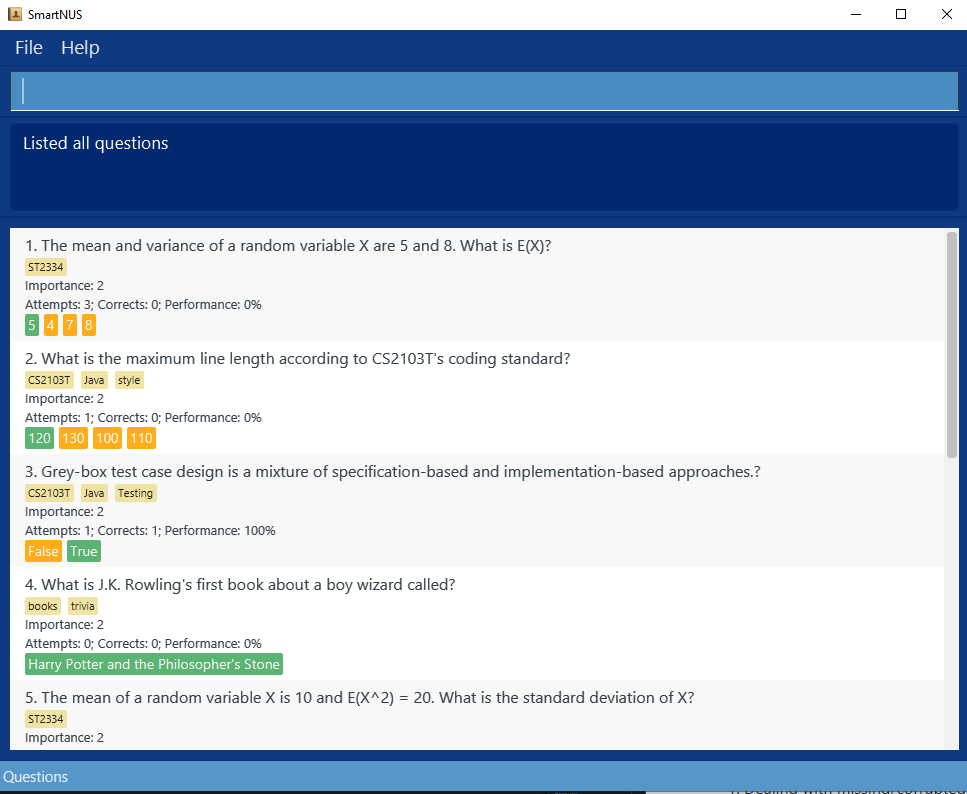
Type the command in the command box and press Enter to execute it. e.g. typing help and pressing Enter will open the help window.
Some example commands you can try:
-
list question: Lists all questions. -
tfqqn/ Is 2+3 = 5? ans/T i/3: Adds a true false question:Is 2+3 = 5?with answer ‘true’ and importance ‘3’ to SmartNus. -
delete question1: Deletes the 1st question shown in the current question list. (If the current list being shown is not the question list, enterlist questionto display the question list before entering thedelete question1command) -
clear: Deletes all the data in SmartNus. -
exit: Exits the app.
Refer to the Features below for the details of each command
4. Features
This section lists all the commands that SmartNUS supports, with syntax and information about the commands as well as relevant examples.
4.1. Main Window Commands
4.1.1. Viewing Help : help
Shows a message explaining how to access the help page.

Format: help
4.1.2. 4.1.2 Switch between panels : list
Format: list question OR list note OR list tag
Required Parameters:
-
questionornoteortagto specify what to list and change the current panel to.
There are 3 different panels in the main window, each showing one of the 3 different entities (question, note, tag) of SmartNus.
You can tell which panel you are on by looking at the bottom left hand corner of SmartNus:
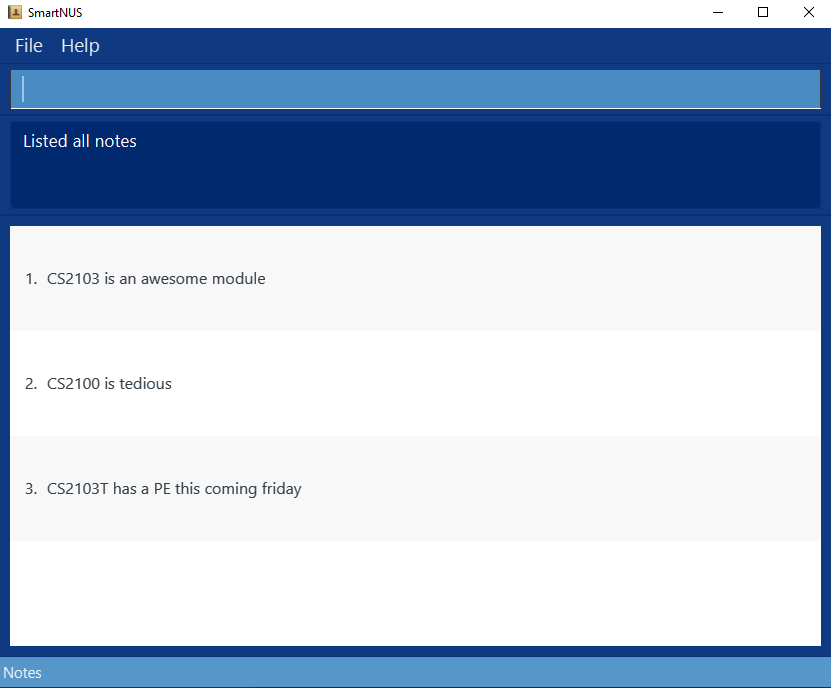
For the above diagram, SmartNus is currently in the Notes panel.
Commands that deal with a specific entity can only be run in their own panel. E.g. Commands that operate (adding, editing, deleting) only on questions can only be run in the Questions panel.
For more details on which command can run in which panel, refer to the Main Window Command Summary
4.1.3. Add a Question
The following features allow you to add various types of questions to the question bank.
Note:
You cannot add a duplicate Question to SmartNUS or edit a Question to become a duplicate of an existing one.
Questions are considered duplicates if they have the same title or question statement.
4.1.3.1. Add a Multiple Choice Question: mcq
Adds a multiple choice question to the question bank.
Format: mcq qn/QUESTION opt/INCORRECT_OPTION1 opt/INCORRECT_OPTION2 opt/INCORRECT_OPTION3 ans/ANSWER i/IMPORTANCE [t/TAG]
Required Parameters:
-
qn/The multiple choice question statement -
opt/The incorrect choices. Exactly 3 inputs in total. -
ans/The correct choice. Exactly 1 input in total. -
i/The importance of the question for the user. An integer between 1 and 3. 3 signifies the highest importance and 1 signifies the lowest importance.
Optional Parameters:
-
t/The tags of the question. Tags must be a single alphanumeric word.
 Tip:
A multiple choice question must have exactly three incorrect options and one correct answer.
Tip:
A multiple choice question must have exactly three incorrect options and one correct answer.
Examples:
-
mcq qn/What is 1 + 1? opt/3 opt/1 opt/0 ans/2 i/1- creates a new MCQ question:
- What is 1 + 1?
- A. 3
- B. 1
- C. 0
- D. 2 (correct)
having importance 1.
- What is 1 + 1?
- creates a new MCQ question:
-
mcq qn/What is 1 + 5? opt/3 opt/1 opt/0 ans/12 ans/6 i/2- creates a new MCQ question:
- What is 1 + 1?
- A. 3
- B. 1
- C. 0
- D. 6 (correct)
having importance 2.
- What is 1 + 1?
- creates a new MCQ question:
4.1.3.2. Add a True False Question: tfq
Adds a true false question to the question bank.
Format: tfq qn/QUESTION ans/ANSWER i/IMPORTANCE [t/TAG]
Required Parameters:
-
qn/The TF Question statement -
ans/The correct choice. 1 in total, can only be either true or false -
i/The importance of the question for the user. An integer between 1 and 3. 3 signifies the highest importance and 1 signifies the lowest importance
Optional Parameters:
-
t/The tags of the question. Tags must be a single alphanumeric word.
Caveat:
- Each true false question can only have one answer, indicated by using “T” for true, and “F” for false.
Tip:
“T” or “F”, which is used to indicate the answer to the true false question, is case-insensitive.
Examples:
-
tfq qn/2*2 = 5? ans/F i/3: 2*2 = 5? False -
tfq qn/Is CS2103T a fun module? ans/t i/2: Is CS2103T a fun module? True -
tfq qn/Will entering multiple valid answers create problems? ans/t ans/f i/2: Will entering multiple valid answers create problems? False
4.1.3.3. Add a Short Answer Question: saq
Adds a short answer question to the question bank.
Format: saq qn/QUESTION ans/ANSWER INCLUDING KEYWORDS k/KEYWORD... i/IMPORTANCE [t/TAG]...
Required Parameters:
-
qn/The SA Question statement. -
ans/The correct answer. 1 in total. -
k/The keywords for evaluating the answer. Need to be included inside theans/parameter. -
i/The importance of the question for the user. An integer between 1 and 3. 3 signifies the highest importance and 1 signifies the lowest importance.
Optional Parameters:
-
t/The tags of the question. Tags must be a single alphanumeric word. - Each short answer question must have exactly one answer.
- The answer must include at least one keyword which is specified using
k/(e.g.ans/k/powerhouse of the k/cell). - Note that keywords MUST be specified within the answer to be recognised as keywords
-
qn/my question? k/KEYWORDOUTSIDEANSWER ans/my answer i/2is an invalid command - See examples given below for valid commands to try out.
-
- Keywords are stored in lowercase. Specifying
k/ABCandk/abcboth result in “abc” being stored as the keyword. However, the answer will be displayed with the correct case (“ABC” and “abc” respectively) - During a quiz, any answer that contains all the keywords (case-insensitive) in any order is considered correct (e.g. “DatAstrUcturesandalgorithms” will be a correct answer to a question whose keywords are “structure” and “data”)
- Keywords are made up of alphanumeric characters.
When specifying a keyword that includes non-alphanumeric characters
(e.g.
k/"harry, !'abc@#^e,y?), only the first valid part of the word (continuous string of alphanumeric characters) will be taken as the keyword i.e. “harry”.
Examples:
saq qn/What does mRNA stand for? ans/k/messenger k/ribonucleic k/acid i/1saq qn/Who wrote The Merchant of Venice? ans/William k/Shakespeare i/2 t/literature t/classics-
saq qn/You're a wizard, Harry. Which book is this quote from? ans/k/Harry k/Potter and the Philosopher's Stone i/2- Answer is displayed as “Harry Potter and the Philosopher’s Stone”.
- During a quiz:
- Correct answers include “haRRy PoTtEr”, “Harry Potter and the Philosopher’s Stone”, “potter harry”, “harrypotter” and “wordthatincludesharryandpotter”
- Incorrect answers include “Potter” and “harr pottery”
4.1.4. Add notes: note
Adds a note to the note list.
Format: note note/NOTE
Required Parameters:
-
note/The note statement
Notes accept all text and numbers.
Required Parameters:
-
questionornoteortagto specify what to list4.1.5. Delete a Question or Note:
delete
Deletes an existing question or note from the question bank or note list.
Format: delete question QUESTION_INDEX OR delete note NOTE_INDEX
Required Parameters:
-
questionandQUESTION_INDEX
OR
-
noteandNOTE_INDEX
Deletes the question or note with the specified QUESTION_INDEX or NOTE_INDEX, if the index is valid.
The QUESTION_INDEX or NOTE_INDEX refers to the index number shown in the displayed list.
- A valid index is:
- a positive integer between 1 and 2147483647 (both inclusive)
- Equal to or smaller than the number of items in the list. Eg. If a list contains 5 questions,
6is not a valid index but3is.
4.1.6. Edit a Question and Answers: edit
Edits an existing question in the question bank with the specified question number.
Format: edit QUESTION_ID [qn/QUESTION] [t/TAG]... [ans/CORRECT_ANSWER] [opt/INCORRECT_OPTION]... [i/IMPORTANCE]
Required Parameters
-
QUESTION_IDrefers to the index number shown in the displayed question list. -
A valid index is:
- a positive integer between 1 and 2147483647 (both inclusive)
- Equal to or smaller than the number of items in the list. Eg. If a list contains 5 questions,
6is not a valid index but3is.
Optional Parameters
-
qn/The new question statement -
t/The new question tags -
ans/The new correct answer -
opt/The new incorrect options (if question is aMCQ) -
i/The new importance
- At least one of the optional fields must be provided.
- Existing values will be updated to the input values.
-
You cannot edit question type (e.g. cannot edit a Multiple Choice Question to a True False Question)
- Edit Tags
- When editing tags, the existing tags of the question will be removed i.e adding of tags is not cumulative
- You can remove all the question’s tags by typing
t/without specifying any tags after it
- Edit Answers/Options
- If editing the answers of a question, all option(s) and answer(s) must be valid for the type of question being edited
- Multiple Choice Question: Specify all three incorrect options (
opt/) and one correct answer (ans/) - True/False Question: Only specify the correct answer (
ans/), which must be “T” or “F” - Short Answer Question: Only specify the correct answer (
ans/) which must include at least one keyword (k/)
Examples:
- Multiple Choice Question (MCQ):
edit 1 opt/1 opt/2 opt/3 ans/4 t/sets the incorrect options to 1, 2, and 3, and the correct answer to 4, and removes all the tags from Question 1 if it is an MCQ. - True/False Question (TFQ):
edit 2 ans/Tsets the answer of Question 2 to True if it is a TFQ. - Short Answer Question (SAQ):
edit 3 ans/k/powerhouse of the k/cell t/CS2100sets the answer of Question 3 to powerhouse of the cell, with keywords “powerhouse” and “cell”, and replaces all tags with CS2100 if Question 3 is an SAQ.
Tip:
If you were previously in a filtered view (e.g. after running the find CS2100 command),
and your edited question no longer matches this filter (e.g. question title no longer contains “CS2100”),
your edited question will not be shown on-screen. To see a list of all questions,
run the list question command.
4.1.7. Find/Search Questions: find
Shows a list of all questions in SmartNUS that have all the specified keywords in their titles, at least one of the specified tags, and the importance value (if specified).
Format: find [KEYWORDS]... [t/TAG]... [i/IMPORTANCE]
Parameters
-
KEYWORDSThe specific keyword(s) to be searched -
t/The specific tag(s) to be searched -
i/The importance to be searched
- At least one of the optional fields to find by must be specified.
- If
KEYWORDSare specified, they must be specified before any tags and importance. - The search is case-insensitive for both keywords and tags (e.g.
mathwill matchMaTH). - Only full words will be matched for both keywords and tags (e.g.
CS2100will not matchCS210). - The following characters
,.?!:;*"()[]{}which are commonly used to separate words are not considered part of a word or keyword. Instead, they are considered as word separators similar to a space.-
find *("literature":,;?!)]}returns the same result asfind literature. -
find ,:;?(]is an invalid command as it is the same as finding a blank keyword or only inputting spaces as keywords. -
find first? second (third...)!is the same asfind first second third.
-
- Hyphenated words are considered as one word (e.g.
find grey-boxwill not return a question titledgrey box). - Any question that has at least one of the tags AND all the keywords in its title (in any order) AND the importance specified will be listed.
Tip:
You can search for more than one tag or keyword.
Tip:
To return to the list of all questions, use the list question command.
Examples:
-
find load word t/CS2100 t/MIPS i/2returns questions tagged with at least one of the tags, with importance value 2 and whose title includes “load” and “word” in any order.- e.g. A question titled “What is the load word instruction used for?” tagged with only CS2100 and with an importance value of 2 will be listed.
-
find javareturns a question titled “How do you output text to the console in Java?” but not a question titled “Javascript is commonly used in web development. True or false?” (sincejavais not a full word match forjavascript).
4.1.8. Find/Search Stats: stat
Shows the list of statistics by Tag for the questions attempted.
The total number of attempts and correct attempts for questions under each tag will be shown.
Format: stat [t/TAG]...
Parameters
-
t/The specific tag(s) to be searched
Caveats:
- The search is case-insensitive for tags.
- Only full words will be matched. (e.g.
CS2100will not matchCS210) - Statistics for any of the tags passed in will be shown.
- If no parameters are passed in, it will show all statistics.
- Statistics are shown from worst to best.
- For questions that have multiple tags, SmartNus will count its attempts and correct attempts under all its tags.
Examples:
-
stat t/CS2100 t/MIPSreturns the overall statistics for the questions tagged withCS2100orMIPSor both.
4.1.11. Start a Quiz: quiz
Format: quiz [lim/ LIMIT] [t/TAG]... or quiz [n/INDEX...]
Optional Parameters
-
lim/positive, non-zero integer that will limit the number of questions in the quiz. Works with tag. -
t/quiz will be formed from questions with at least one of the specified tag(s). -
n/quiz specific questions -INDEXrefers to the index number shown in the displayed question list.- Multiple indexes can be entered, with a space between them. (e.g.
n/ 1 2 3)
- Multiple indexes can be entered, with a space between them. (e.g.
- If no parameters are passed, a quiz session will be created using all the questions in the question list.
- TAG can be used to filter the quiz to only give questions with at least one of the tags specified, works with limit.
- INDEX can be used to filter the quiz to only give questions with the specified question numbers. Does not work with tag or limit. The index must be a positive integer from 1 to 2147483647
- LIMIT can be used to limit the number of questions in the quiz. Does not work with index. Works with tag.
- The limit must be a positive integer from 1 to 2147483647
- Questions will be prioritised and sorted if LIMIT is passed in: The questions with the highest importance (
3) will be shown. - In the case of questions with the same importance, their performance is used as a tiebreaker.
- A valid index is:
- a positive integer between 1 and 2147483647 (both inclusive)
- Eg. If the displayed question list contains 5 questions,
quiz n/1 2 3 6will result in a quiz with question index numbers 1, 2 and 3. - If no valid index exists, (e.g.
quiz n/7in a list that contains 6 questions), the quiz will not start.
- A valid limit is:
- a positive integer between 1 and 2147483647 (both inclusive)
- Eg. If SmartNus contains 5 questions,
6is a valid limit but only5questions will be shown in the quiz.
Examples:
-
quiz lim/5 t/CS2100 t/MIPSquiz will select questions tagged with at least one of the tags, limited to 5 questions. -
quiz n/1 2 3quiz will select the questions with index number 1 2 3 from the current displayed list.
Expected Outcome:
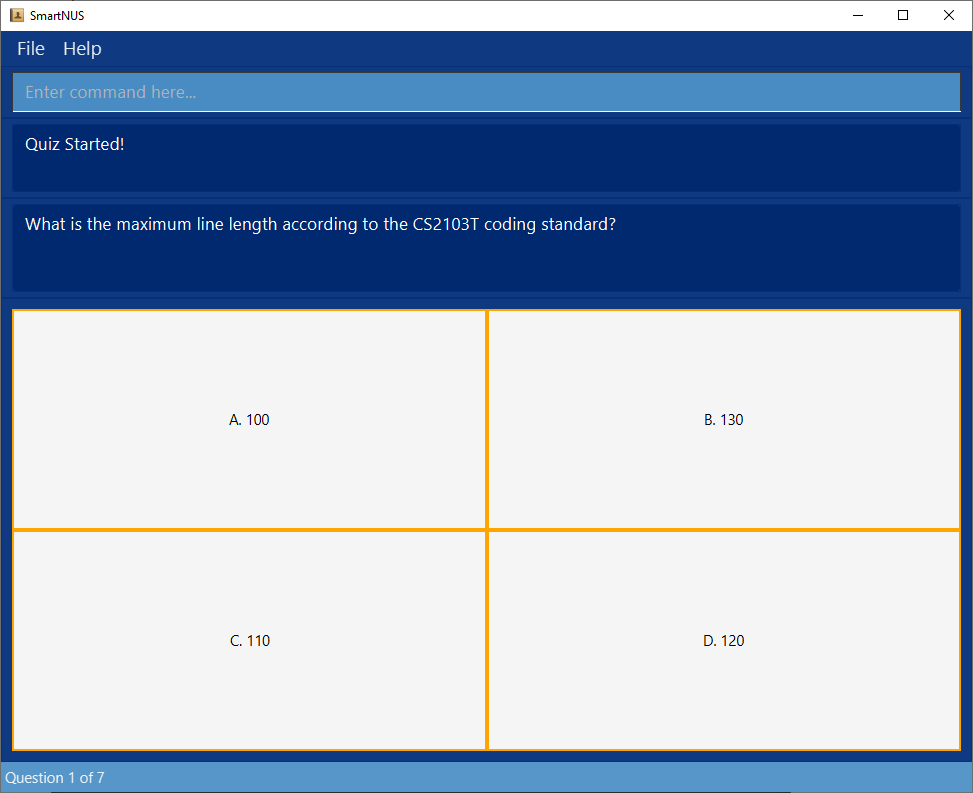
4.1.12. Clear All Entries : clear
Clears all entries (questions, notes and tags) from the question bank.
Format: clear
4.1.11. Exit the Program : exit
Exits the program.
Format: exit
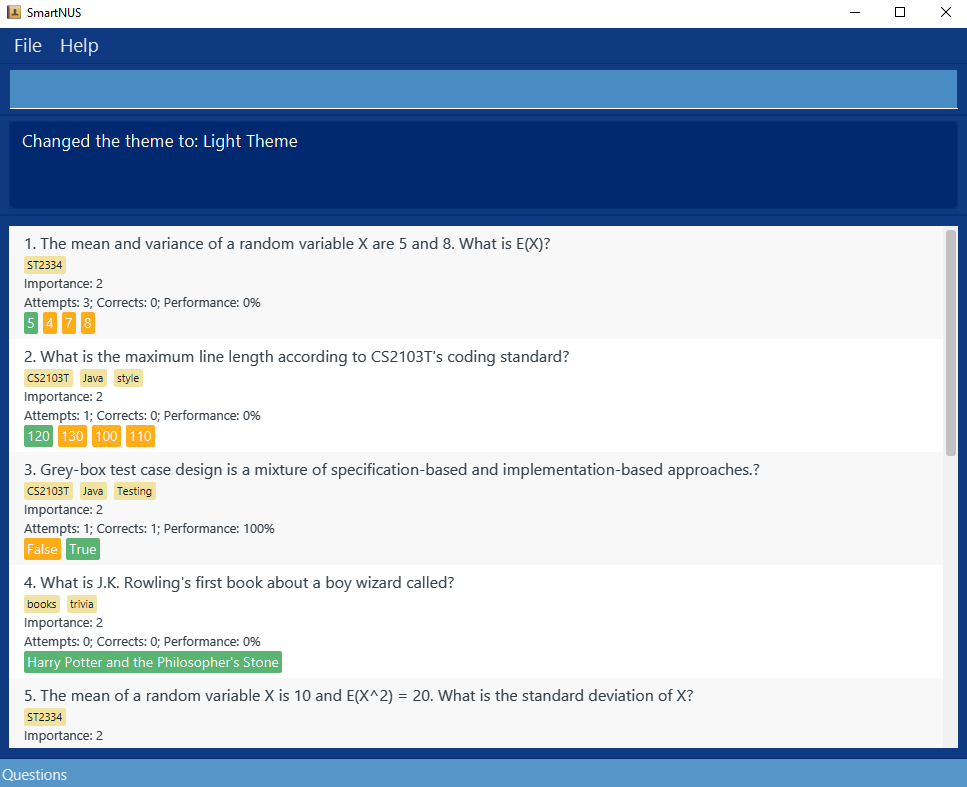
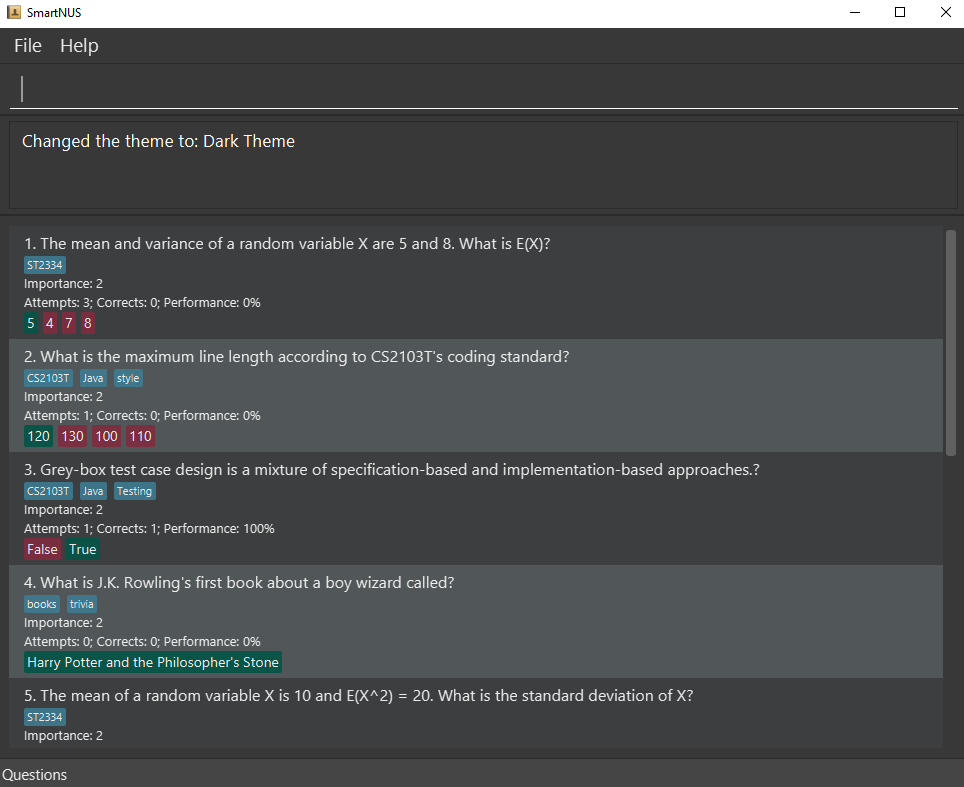
4.1.12. Change the Theme: theme
Changes the theme of the app.
Format: theme THEME
4.1.12.1. Parameters:
-
THEME: can only belightordark
Examples:
-
theme light: Sets the theme to light -
theme dark: Sets the theme to dark
4.2. Quiz Window Commands
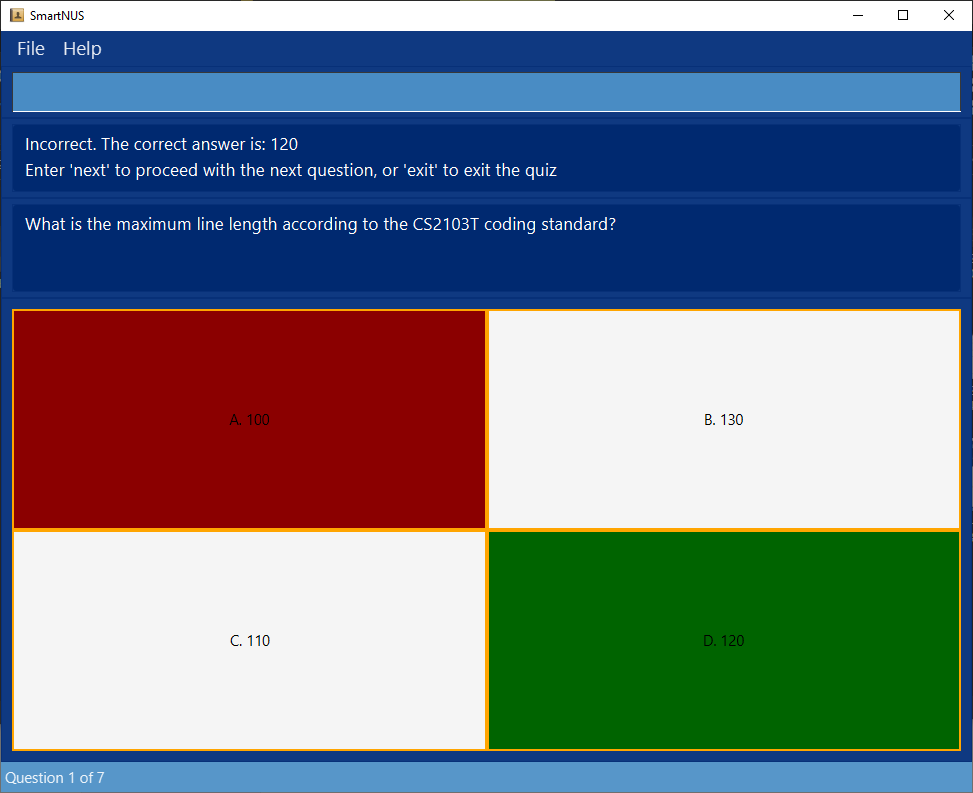
4.2.1. Answer a Multiple Choice Question: A B C D
Answers the multiple choice question with the options.
Format: A B C D (case-insensitive)
Examples:
-
A: Answers the multiple choice question with option ‘A’
Expected Outcome:
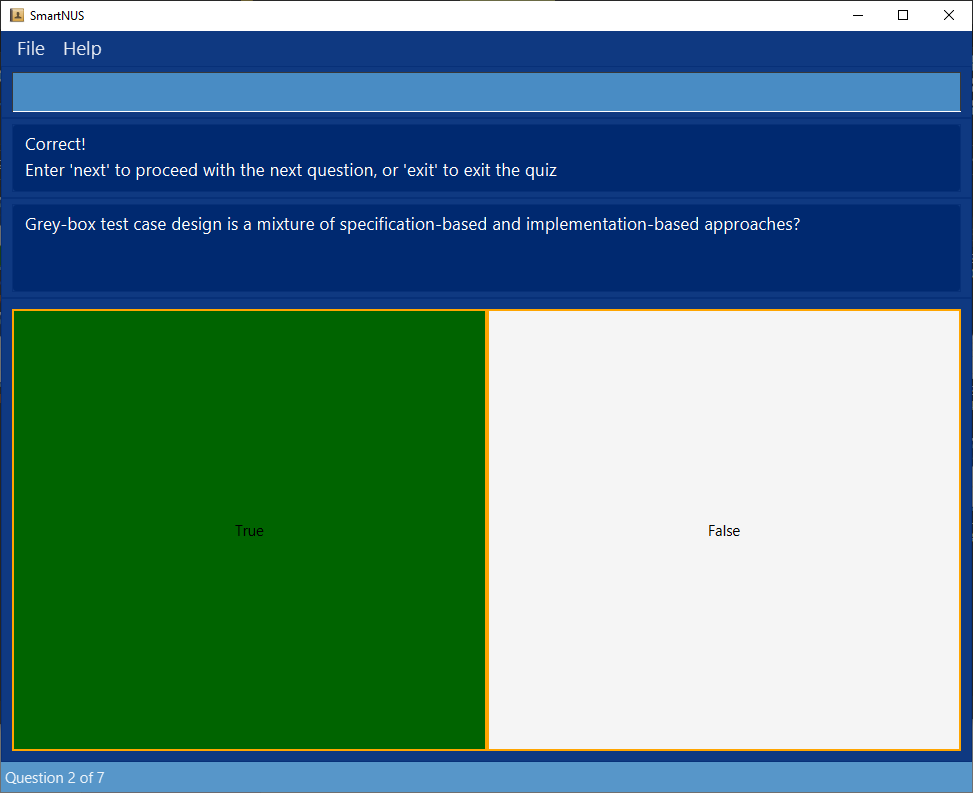
4.2.2. Answer a True False Question: T F
Answers the multiple choice question with the options.
Format: T F True False (case-insensitive)
Examples:
-
T: Answers the multiple choice question with option ‘True’ -
True: Answers the multiple choice question with option ‘True’
Expected Outcome:
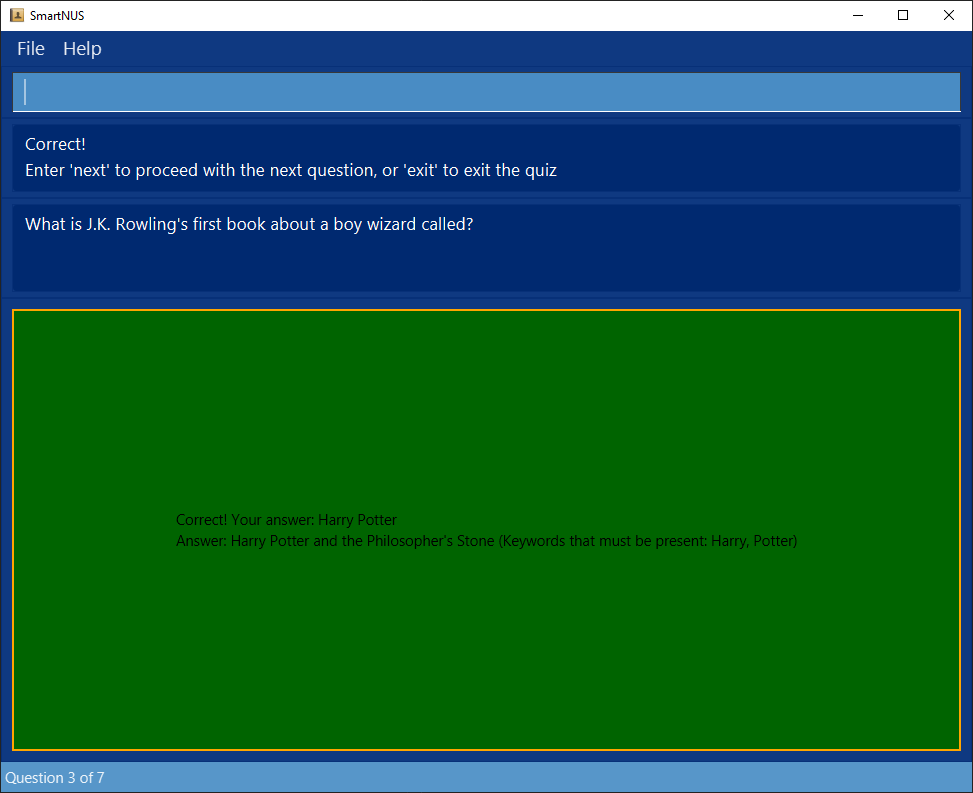
4.2.3. Answer a Short Answer Question: ans/
Answers the short answer question with the provided answer.
All text after the first instance of ans/ is taken as the intended answer.
Format: ans/ANSWER
Examples:
-
ans/Harry Potter: Answers the short answer question with “Harry Potter”.
Expected Outcome:
4.2.4. Go to the Next Question: next
Navigate to the next question.
Format: next
4.2.5. Go to the Previous Question: prev
Navigate to the previous question.
Format prev
4.2.6. Exit the Quiz: exit
Exits the quiz.
Format: exit
5. FAQ
Q: How do I save my data?
A: SmartNUS data are saved in the hard disk automatically after any command that changes the data. There is no need to save manually.
Q: How do I transfer my data to another Computer?
A: Install the app in the other computer and overwrite the empty data file it creates with the file that contains the data of your previous SmartNUS home folder.
Q: Am I allowed to edit the data file directly?
A: SmartNUS data are saved as a JSON file [JAR file location]/data/smartnus.json. Advanced users are welcome to update data directly by editing that data file.
 Caution:
If your changes to the data file makes its format invalid, SmartNUS will discard all data and start with no data.
Caution:
If your changes to the data file makes its format invalid, SmartNUS will discard all data and start with no data.
6. Command Summary
6.1. Main Window Command Summary
| Action | Format, Examples | Which Panel? |
|---|---|---|
| Add MCQ |
mcq qn/QUESTION opt/OPTION1 opt/OPTION2 opt/OPTION3 ans/ANSWER i/IMPORTANCE e.g., mcq qn/what is 1 + 1? opt/3 opt/1 opt/0 ans/2 i/1
|
question |
| Add TFQ |
tfq qn/QUESTION ans/ANSWER i/IMPORTANCE e.g., mcq qn/Is 1 + 1 = 2? ans/t i/1
|
question |
| Add SAQ |
saq qn/QUESTION ans/ANSWER INCLUDING KEYWORDS k/KEYWORD... i/IMPORTANCE [t/TAG]... e.g., saq qn/what is Shakespeare's first name? ans/k/William i/1
|
question |
| Add Note |
note note/NOTE e.g., note note/This is a note
|
note |
| Delete |
delete question QUESTION_INDEX OR delete note NOTE_INDEXe.g., delete question 1, delete note 2
|
question or note |
| Edit |
edit QUESTION_ID [qn/QUESTION] [t/TAG]... [ans/CORRECT_ANSWER] [opt/INCORRECT_OPTION]... [i/IMPORTANCE] e.g., edit 1 qn/Who wrote Pride and Prejudice? i/3 t/literature |
question |
| Find |
find [KEYWORDS]... [t/TAG]... [i/IMPORTANCE] e.g., find load word t/CS2100 t/MIPS i/2
|
question |
| Stat |
stat [t/TAG]... |
tag |
| Quiz |
quiz [lim/ LIMIT] [t/TAG]... [n/INDEX...] |
question |
| Theme |
theme light or theme dark |
all |
| List |
list question or list note or list tag |
all |
| Clear |
clear |
all |
| Exit |
exit |
all |
| Help |
help |
all |
6.2. Quiz Window Command Summary
| Action | Format, Examples |
|---|---|
| Option A |
A |
| Option B |
B |
| Option C |
C |
| Option D |
D |
| Option True |
T, True (Case-insensitive) |
| Option False |
F, False (Case-insensitive) |
| SAQ Answer |
ans/ANSWERe.g., ans/Harry Potter |
| Next |
next |
| Prev |
prev |
| Exit |
exit |